FAX App: Send Faxes from Phone
- 4.5
- Rating
- 1.00M
- Installs
- Free
- Price
 Analysis by App-foxy
I usually reach for a fax app only when a normal email attachment is not enough, which is exactly why a tool like FAX App: Send Faxes from Phone needs to be judged by practical details rather than flashy extras. I tested it with that mindset: how quickly I could turn phone documents into something sendable, how manageable it felt during a busy workday, and whether it remained useful when several pages had to be handled in one sitting. My overall impression is that it is a focused business utility for people who occasionally need faxing without keeping a traditional machine nearby.
The app is developed by Municorn and is available free to install for Everyone. It has built a sizeable audience, with over a million installs, an average rating of 4.5, and around 62 thousand ratings. Those figures suggest that it has become a familiar option for mobile faxing, although popularity alone does not remove the need to check whether its workflow suits your documents and budget.
How FAX App fits into a real workday
The most useful way to understand this app is as a bridge between paper-based business routines and a phone-first workflow. A user may receive a form, photograph a signed page, prepare a PDF, and then need to send it to an office that still accepts fax. Instead of finding a physical machine, I can keep the process in one place on an Android phone.
You May Also Like

 Blood Strike: 2.5 Anniversary
Blood Strike’s Loadouts Turn Every Drop Into a Tactical Gamble
A close look at Blood Strike’s custom loadouts: how fast access to signature weapons reshapes its battle royale rhythm, rewards preparation, and narrows the gap between fights.

 Pandora - Music & Podcasts
Pandora’s Music Is Easy to Start, but Harder to Recover
Pandora’s strength is its low-effort path from a seed to a station. Its weak spot is how much confidence it asks you to place in connection, setup, and quiet recovery.

 8 Ball Pool
 Is Built on Rivalries, Rematches, and Routine
A close look at the rivalries, rematches, shared routines, and unanswered safety questions that turn a quick pool match into a persistent mobile community.

 Samsung Music
’s Quiet Strength Is Playing What You Already Own
Its reach comes less from spectacle than from dependable access to a personal library. That simplicity is both the app’s strongest retention engine and its ceiling.

 AccuWeather: Weather Radar
AccuWeather Review: A Quick, Clear Forecast for Everyday Decisions
For everyday plans, the best forecast is the one you can understand quickly. AccuWeather makes rain timing, radar, and local conditions easy to act on, with a few trade-offs.

 Hill Climb Racing
Why Hill Climb Racing Still Turns Crashes Into One More Run
A tiny car, a bumpy hill and one more upgrade: Hill Climb Racing keeps resurfacing because its simple chaos makes every near-miss feel personal.
More From Our News Desk



That makes it relevant to freelancers, small offices, property managers, healthcare administrators, legal support workers, and anyone who deals with organizations that insist on fax. It is also practical for occasional users who do not want to buy hardware for a task that may happen only a few times each month.
The store presents it as a mobile PDF document tool and a fax app, but the important distinction is that it is not simply a document viewer. Its value comes from moving a document toward transmission. That sounds obvious, yet it changes how I prepare files: I think about legibility, page order, and whether the final document is suitable for a recipient who may print it immediately.
My strongest recommendation is to treat the phone camera as part of the document workflow, not as an afterthought. A crooked or shadowed photo can still be technically readable on a bright screen while producing a poor fax. I found that taking a moment to place the page flat, keep the camera parallel, and check every edge before sending is more important than trying to rush through the app.
Speed expectations: quick when the document is ready
The app feels most efficient when the source material is already a clean PDF or a well-prepared image. In that situation, the work is mostly selecting the document, entering the destination details, and reviewing the pages. The phone avoids the physical setup associated with a fax machine, so the first part of the process feels naturally faster and less awkward.
That does not mean every fax is instant. The slowest part is often document preparation rather than the app itself. A multi-page paper packet may require careful capture, cropping, and checking. If I skip that review, I save a few seconds at the beginning but risk having to repeat the whole job later. A reliable workflow is therefore faster than a careless one.
There is another important expectation to set: sending a fax involves communication beyond the device. The app can organize and submit the document, but the final experience depends on the destination and the transmission process. I would not use it for a deadline so tight that a small delay could cause a serious problem without leaving enough time for confirmation and correction.
Compared with emailing a PDF, this is obviously more deliberate. Email usually wins when the recipient accepts attachments and immediate delivery is enough. Compared with a physical fax machine, the phone approach wins on convenience and access, especially away from an office. The trade-off is that the app introduces a digital service workflow where a traditional machine may feel more direct to someone already standing beside it.
Heavy-use moments: where preparation matters most
The app is easiest to appreciate when several pages have to be sent while I am away from a desk. Imagine a contractor at a job site receiving a signed change order and needing to forward it to an office before leaving. A phone can capture the pages, assemble the material, and start the fax without waiting to return to the workplace. That is a genuinely useful scenario, not merely a replacement for a machine sitting in the same room.
Busy periods also expose the difference between a single-page task and a document batch. With multiple pages, I pay closer attention to sequence and completeness. A missing signature page or an upside-down sheet can undermine an otherwise successful transmission. My practical tip is to label or mentally group the pages before starting, then inspect the assembled document as one unit rather than checking pages only as separate camera captures.
Another non-obvious trade-off is phone attention. While preparing a fax, it is tempting to switch between messages, cloud storage, camera screens, and the fax workflow. That increases the chance of selecting an older revision or forgetting which pages have already been added. I get better results when I finish the document first, then send it as a dedicated task instead of treating the app as a background utility.
For repeated office use, cost becomes more relevant. The app itself is free, but in-app purchases range from $5.99 to $99.99 per item. That means occasional use may be easy to justify, while frequent faxing deserves a careful look at the available purchase options and the volume of documents involved. A small business should compare the likely ongoing expense with a conventional fax service or a multifunction printer before making it part of a permanent process.
Reliability depends on checking the whole handoff
I judge a fax app as reliable only when it helps me avoid silent mistakes. A document can look fine in the editor and still fail as a business record if a page is missing, the text is too faint, or the recipient details are wrong. The app is most dependable when I use its document workflow deliberately and treat the final review as mandatory.
My preferred recovery habit is simple: keep the original document available until the transmission has been accepted and the recipient has confirmed receipt when the matter is important. If something goes wrong, having the source file or original photographs ready makes a retry much less stressful. I would not delete the working material immediately after pressing send.
This is especially important for forms containing small print. A phone display can make a page appear readable because I can zoom in, but the recipient may receive a document that is less forgiving when printed. I check signatures, dates, account numbers, and handwritten notes at their actual visual size before sending. That small discipline improves reliability more than any attempt to shave time from the upload step.
The app’s 4.5 average from around 62 thousand ratings gives me reasonable confidence that the basic idea works for many users, but I would not interpret that as a guarantee for every destination or document type. Faxing is still a chain: capture, preparation, submission, transmission, and recipient handling. A problem at any stage can look like an app problem, so I keep the workflow traceable whenever the document matters.
There is also a privacy consideration in ordinary use. I would avoid casually sending highly sensitive material until I had reviewed the app’s current purchase and handling screens myself and understood exactly what I was submitting. That is not a criticism unique to this product; it is a sensible rule for any service that moves personal, financial, medical, or legal documents from a phone to an external recipient.
Device constraints and Android compatibility
The current version is 3.27.0, and the app requires Android 8.0 or later. That covers a broad range of phones, but owners of older devices should check compatibility before planning around it. On a supported phone, the main practical constraints are less about raw power and more about available storage, camera quality, screen size, and whether the device is comfortable for reviewing several pages.
A small screen makes document inspection slower because I need to zoom and move around the page. A weak or damaged camera can make paper capture frustrating, particularly for faint text or uneven lighting. On the other hand, a recent phone with a clear camera can make the app far more useful than its simple category label suggests, because the device itself becomes the scanner and communication terminal.
Long documents can also be demanding in a practical sense even if the app does not feel technically heavy. More pages mean more opportunities for a wrong order, an overlooked blank image, or a failed capture. I recommend preparing large packets in a quiet place rather than attempting them while walking between appointments. That is a workflow limitation, not necessarily a performance defect, but it affects how stable the overall experience feels.
Battery and connection conditions matter too. A fax task is not the right moment to rely on a nearly empty phone or an unstable connection. If I am away from Wi-Fi, I make sure the mobile connection is dependable before starting. I also keep the phone awake during document review so that I do not lose track of where I am in the process. These are modest precautions, but they make recovery easier when the app is being used outside an office.
People who want a full office suite may find the focused design restrictive. This is not the best choice if your main need is advanced text editing, collaborative document authoring, or a complete replacement for desktop file management. A dedicated scanner, email client, cloud drive, or printer may be better for those jobs. Its strength is narrower: getting a document from an Android phone into a fax-oriented workflow.
Useful workflows beyond the obvious send button
One effective routine is to separate capture from transmission. I photograph or prepare every page first, inspect the complete set, and only then enter the recipient information. This reduces the chance of discovering a bad image after I have already started the sending process. It also makes it easier to compare the phone version with the original paper before the document leaves my control.
A second useful approach is to create a temporary folder or clearly named file set for urgent paperwork before opening the app. That prevents similar forms from being mixed together, especially when several clients or departments are involved. The app can be the final step in the workflow rather than the place where I try to solve every organizational problem at once.
For recurring forms, I would keep a clean master copy separate from the version that contains signatures or handwritten changes. This avoids accidentally sending an outdated blank form or overwriting the source that may be needed later. It is a small administrative habit, but mobile workflows benefit from it because a phone gallery can become cluttered quickly.
I also recommend a recipient-first check. Before reviewing the pages, confirm that the destination belongs to the right office and that the document is intended for that recipient. When people are in a hurry, they often focus on the scan quality and forget that a perfectly readable fax sent to the wrong place is still a serious failure.
Who should use it, and who should choose something else?
I would recommend this app to someone who needs faxing occasionally, travels between offices, or receives documents on an Android phone and wants to avoid dedicated hardware. It is particularly appealing when convenience matters more than building a complete document-management system. The free installation lowers the barrier to trying the workflow, while the broad age rating makes it suitable for general business use.
I would be more cautious about recommending it as the only fax solution for a high-volume department. Frequent users should examine the in-app purchase structure carefully and compare it with a service whose pricing and administration are designed around regular business traffic. A physical multifunction printer may also be better for an office that already handles paper all day and needs a shared device.
Someone who can use email, secure file sharing, or an official online submission portal should normally choose the method preferred by the recipient. Fax is valuable precisely because some organizations still require it, not because it is automatically better than modern alternatives. The app helps with that requirement, but it should not turn a fax into a habit when a safer or simpler channel is available.
The developer, Municorn, has kept the product centered on a clear business problem rather than trying to make it a general-purpose office suite. I appreciate that focus. At the same time, users should go in knowing that the quality of the result depends heavily on their own document preparation and review habits. The app can simplify access to faxing; it cannot make an unreadable photograph professional.
My performance verdict after regular practical use
In performance terms, I find the app convincing when the phone, document, and connection are all ready. It removes the physical friction of locating a fax machine and makes an occasional business task possible from almost anywhere with a compatible Android device. The experience feels most responsive when I send a prepared file rather than building a large packet under pressure.
Its stability is best understood as workflow stability. Clean inputs, careful page review, and a sensible recovery plan produce a much more dependable result than hurried camera captures and immediate deletion of the originals. Heavy use exposes organizational weaknesses before it exposes any obvious need for extra speed, so good preparation has a larger effect than raw device performance.
The price model is the main point I would investigate before relying on it regularly. Free installation is attractive for testing, but purchases from $5.99 to $99.99 per item can change the value calculation for people who fax often. I would start with a low-risk document, learn the process, and then decide whether the cost fits my actual frequency rather than assuming occasional convenience will remain inexpensive at larger volume.
For me, this is a useful specialist app rather than an all-purpose office replacement. It earns a place on an Android phone when faxing is an occasional but unavoidable part of work, especially during travel or unexpected paperwork. If your documents are already digital, your recipients accept email, or you need a shared high-volume office system, another option may be more sensible. But when a signed page must leave a phone through a fax workflow, FAX App: Send Faxes from Phone is a practical solution, provided I slow down enough to check every page and plan for confirmation.
FAQs for FAX App: Send Faxes from Phone
01How does the FAX App: Send Faxes from Phone work?
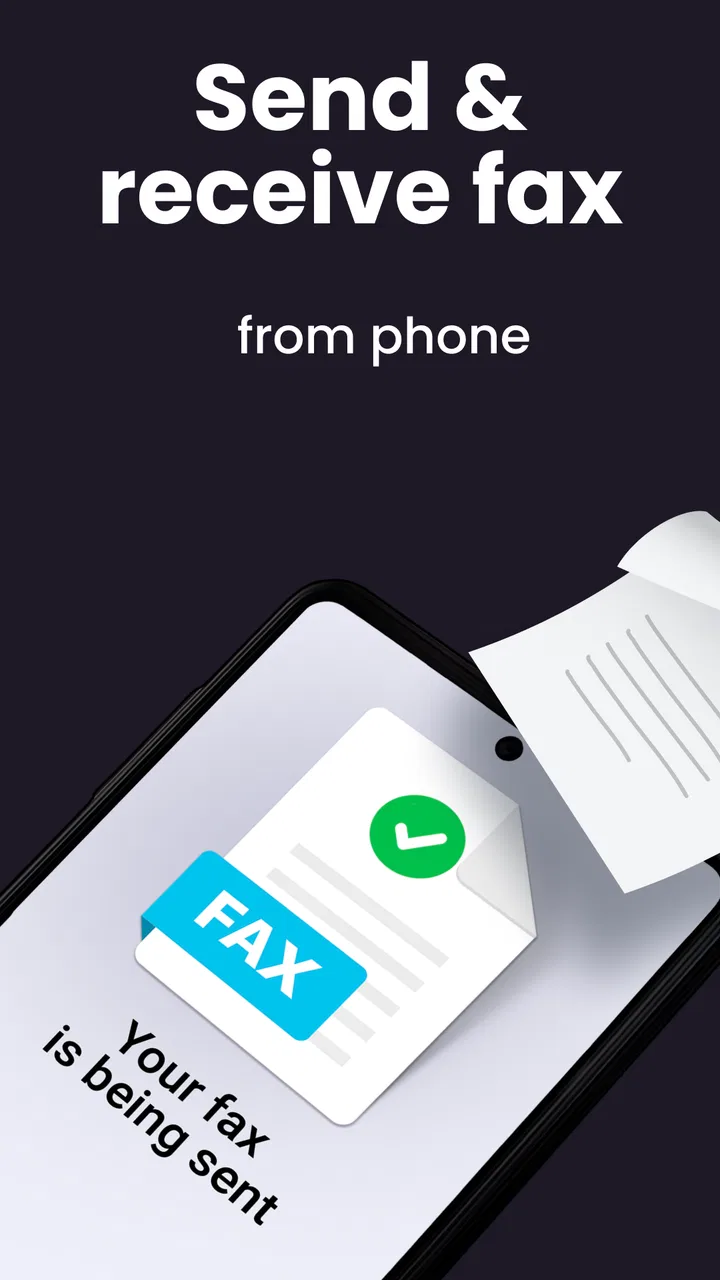
The FAX App allows users to send faxes directly from their smartphones. By using your phone's camera or selecting documents from your device or cloud storage, you can easily convert them into faxes. The app provides a user-friendly interface where you can enter the recipient's fax number and send your documents swiftly.
02Is the FAX App secure for sending sensitive documents?
Yes, the FAX App uses encryption protocols to ensure your documents are securely transmitted. It follows industry-standard security measures to protect your data during transfer. However, it’s always advisable to review the app’s privacy policy for specific details on data handling and retention practices.
03Are there any costs associated with using the FAX App?
The FAX App typically offers a free trial or limited number of free faxes. For continued use, it usually operates on a subscription model or pay-per-fax basis. It’s essential to check the app’s pricing structure within the app store to understand the costs involved before committing.
04What types of documents can I send using the FAX App?
The FAX App supports a variety of document formats, including PDF, DOC, DOCX, JPG, and PNG. You can upload documents directly from your phone or capture new documents using the camera feature. This flexibility ensures that you can send virtually any type of document needed.
05Does the FAX App require an internet connection to send faxes?
Yes, the FAX App requires an internet connection to send documents. It uses your device’s network connection to transmit faxes to the recipient’s fax machine. Make sure you have a stable internet connection to avoid any interruptions during the faxing process.
Pros
- Easy-to-use interface simplifies faxing.
- Supports multiple file formats seamlessly.
- Offers secure data encryption for faxes.
- Allows faxing from cloud storage services.
- Provides instant notifications for sent faxes.
Cons
- Limited free usage before subscription required.
- Occasional delays in fax delivery times.
- No offline mode for sending faxes.
- Requires stable internet connection.
- Customer support response can be slow.

FAX App: Send Faxes from Phone
Gallery